Real audio, broken down line by line
Take a podcast, a clip, or a recording you already have, and turn it into a conversation you can study. Or build one yourself, line by line.
Real human Japanese, sliced into a conversation
Three taps from a podcast on your phone to a conversation you can shadow.
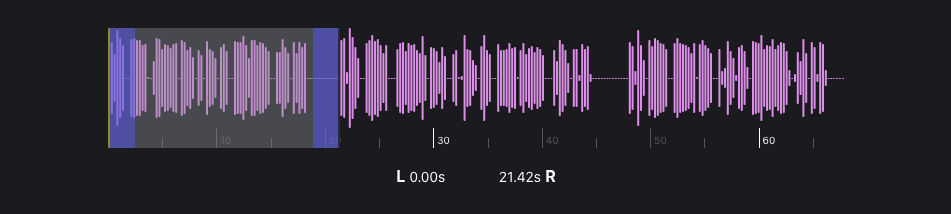
Open Audio Clipper from the home screen. Load an MP3 from your device, a podcast you've downloaded, a clip from a video, a voice note. Select the range you want to extract.
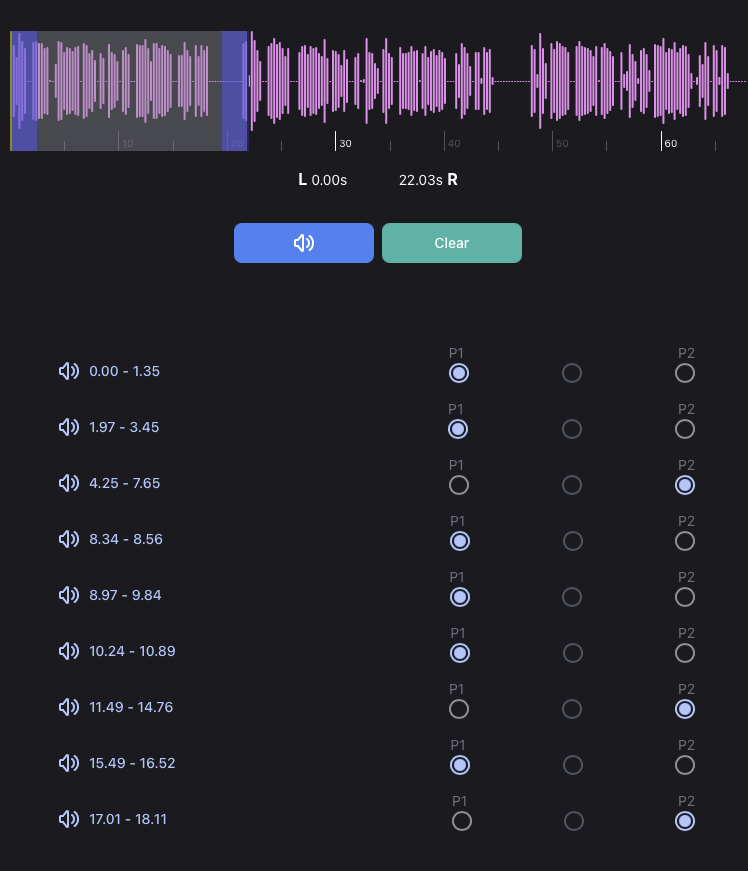
The app splits the audio into segments. You assign each one to P1 (Person 1), P2 (Person 2), or none. Each turn is transcribed locally on your device.

This is the part most learning tools don't have. Real human Japanese has the rhythm, the half-swallowed particles, the natural sentence structures, the way a sentence actually ends. You can shadow against it, repeating after the speaker, mimicking their intonation and pace, until your voice catches their pattern. That practice is hard to replicate any other way.
Two ways in, no audio file needed
If you've got a dialogue from a textbook, a script you've written, or a real exchange you want to study, you can build a conversation directly. No audio file, no clipper.
Add lines as text
Add each line of dialogue with its speaker. Lines stay as text until you ask for anything more, so creating a conversation this way is a no-network operation by default.
Or record each line
Record each turn yourself. The app transcribes it locally and stores the audio with the line, so you've got both from the start.
Useful for working through a textbook dialogue out loud, or capturing an exchange from a video, a teacher, or a conversation partner.
Two ways to play it back
Play the whole conversation through automatically, like you're hearing it live. Or step through line by line, at your own pace.
Auto-play is for listening practice, getting your ear used to the rhythm of a real exchange. Line by line is for shadowing, breakdown work, or just taking your time over something difficult.
What every line gets, on demand
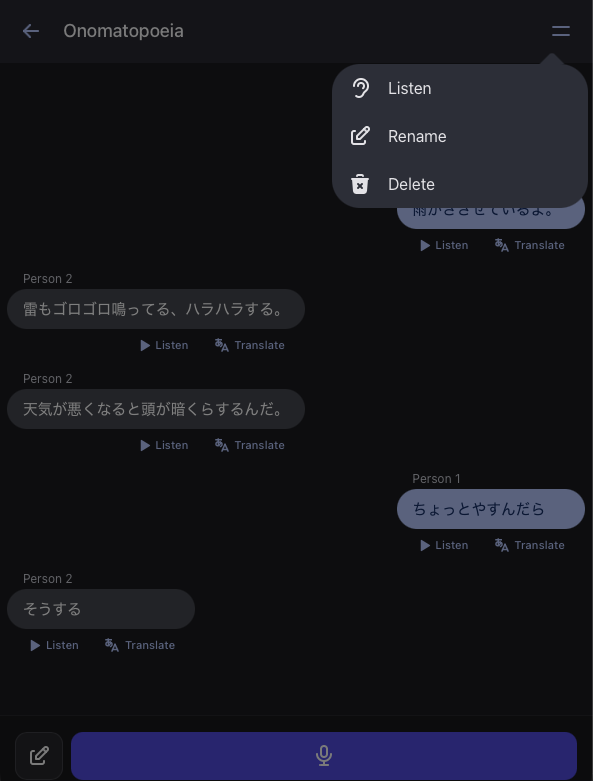
Whether the conversation came from the audio clipper or you built it by hand, every line has the same on-demand tools. Nothing happens automatically. Translation costs money, audio generation costs money, and neither runs without you asking.
Tap to translate, line by line
Tap a line to translate it on demand, using your provider. The translation includes the same word-by-word breakdown you get from Translate, with readings, dictionary forms, and tap-through to entries.
Lines stay untranslated until you ask, so the page does not quietly hit the network in the background.
Original where it exists, generated when you want it
If the line came from the audio clipper or a recording, that's the audio you get, real, human, what you started with.
For typed lines, you can generate audio on demand. Like translation, this only happens when you ask.
Cascades from your settings
Generated audio uses your TTS configuration. Connect a third-party voice for the highest quality, or rely on the OS voice.
The OS voice can be improved a little by downloading higher-quality voices in your iOS settings.
Default state: nothing leaves your device
Audio clipper transcription is local. Recordings you make are stored on your device. Conversations themselves, with their text and audio, are stored on your device.
The network is only touched when you ask for it: a translation on a specific line, or generated audio with a third-party voice. Each one is an explicit tap, not a background call.
Quick answers
Common questions about the audio clipper, audio handling, and shadowing.
What audio formats can the audio clipper load?
MP3 files from your device. Pick anything you've already got: a podcast you've downloaded, a clip from a recording app, audio you've extracted from a video.
Does the audio leave my device?
No. Audio you load into the clipper is processed and transcribed locally. Same for recordings you make yourself. Audio doesn't leave the device unless you explicitly ask for translation or generated audio on a specific line.
What's shadowing?
A practice technique where you repeat after a native speaker, ideally as they're still speaking, mimicking their rhythm, intonation, and pace. The audio clipper makes shadowing easier because the original audio is right there, paired with the transcription.
Can I import existing scripted dialogues?
Not at the moment. You can build a conversation by typing or recording each line. If a text-import path would be useful, get in touch.
More on the FAQ page →.
Available now on iOS and macOS. Up next: study.